You can access your certificates for legal person (LPC) from the left sidebar of your dashboard, via the Administration space.
The Certificates section allows you to display information about your certificates (status, issuer, validity date, etc.). These certificates represent the seals you can use to sign documents on behalf of a legal entity.
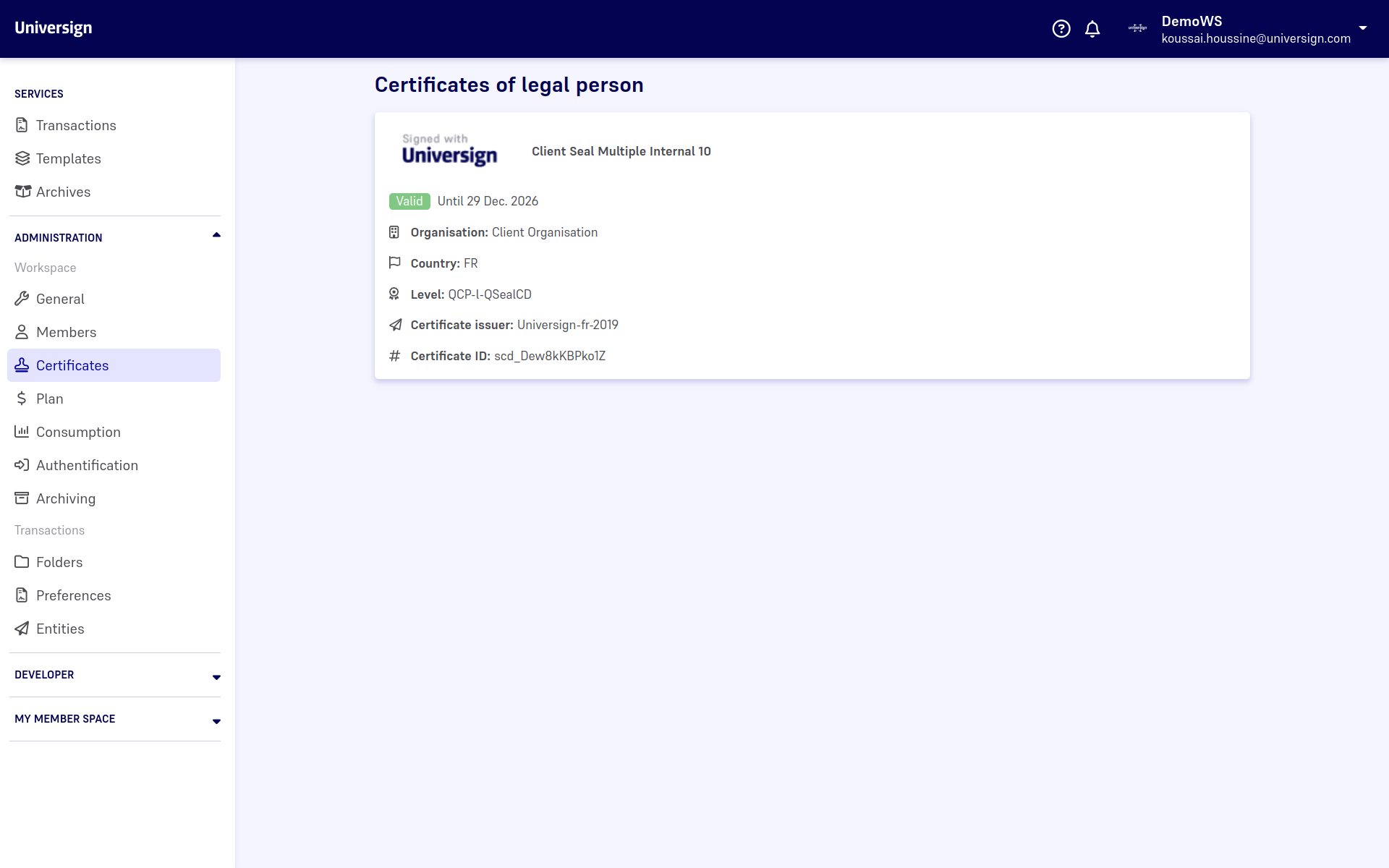
To create and/or revoke a certifcate for legal person, you must contact your account manager at Universign.
Note that, although they still display in your workspace, revoked certificates can no longer be used.
Activate and use a QCP-l-qscd certificate
You may need to use a qualified seal to sign a document on behalf of a legal entity. To do so, you need to have a QCP-l-qscd certificate. As it is a higher level certificate, the use of the qualified seal needs to be authorized by setting the PIN code previsouly initialized for the certificate.
Once your account manager creates your certificate, you receive an invitation email to access your workspace and activate your certificate.
The qualified certificate is valid for 5 years from the date of activation.
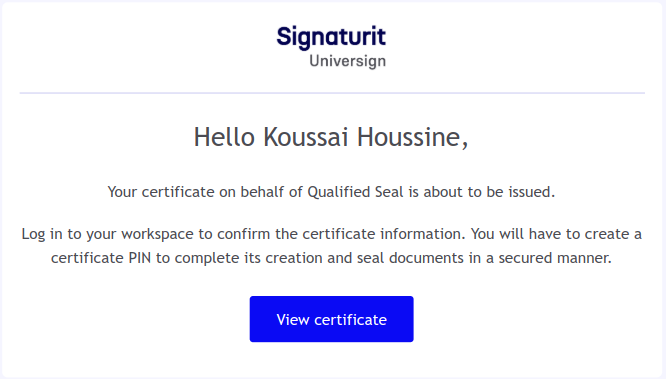
Note that only the certificate holder (designated during certificate creation) can activate the certificate. All other workspace members with admin rights can only display certificates.
Activate the QCP-l-qscd certificate
From the Certificates section, access your QCP-l-qscd certificate card and click on Activate certificate. Then, initialize the PIN you will use everytime you need to affix a qualified seal on a transaction document.
Important: Once initialized, the PIN cannot be changed. If you forget it, you can no longer use the qualified seal and a new certificate needs to be created.
Use a qualified seal within a transaction
To use a qualified seal within a transaction:
-
Add a signature field to a document of the transaction.
-
Assign the certificate corresponding to the qualified seal to the signature field.
If you use a qualified seal within a transaction, you need to enter the PIN related to the qualified seal certificate. Without the PIN, you cannot start the transaction containing the qualified seal.
Note that, whenever you use a qualified seal within a transaction, the latter will be processed before any other signature or seal. The following illustration describes the workflow of a transaction containing a qualified seal, a non-qualified seal and a signature.
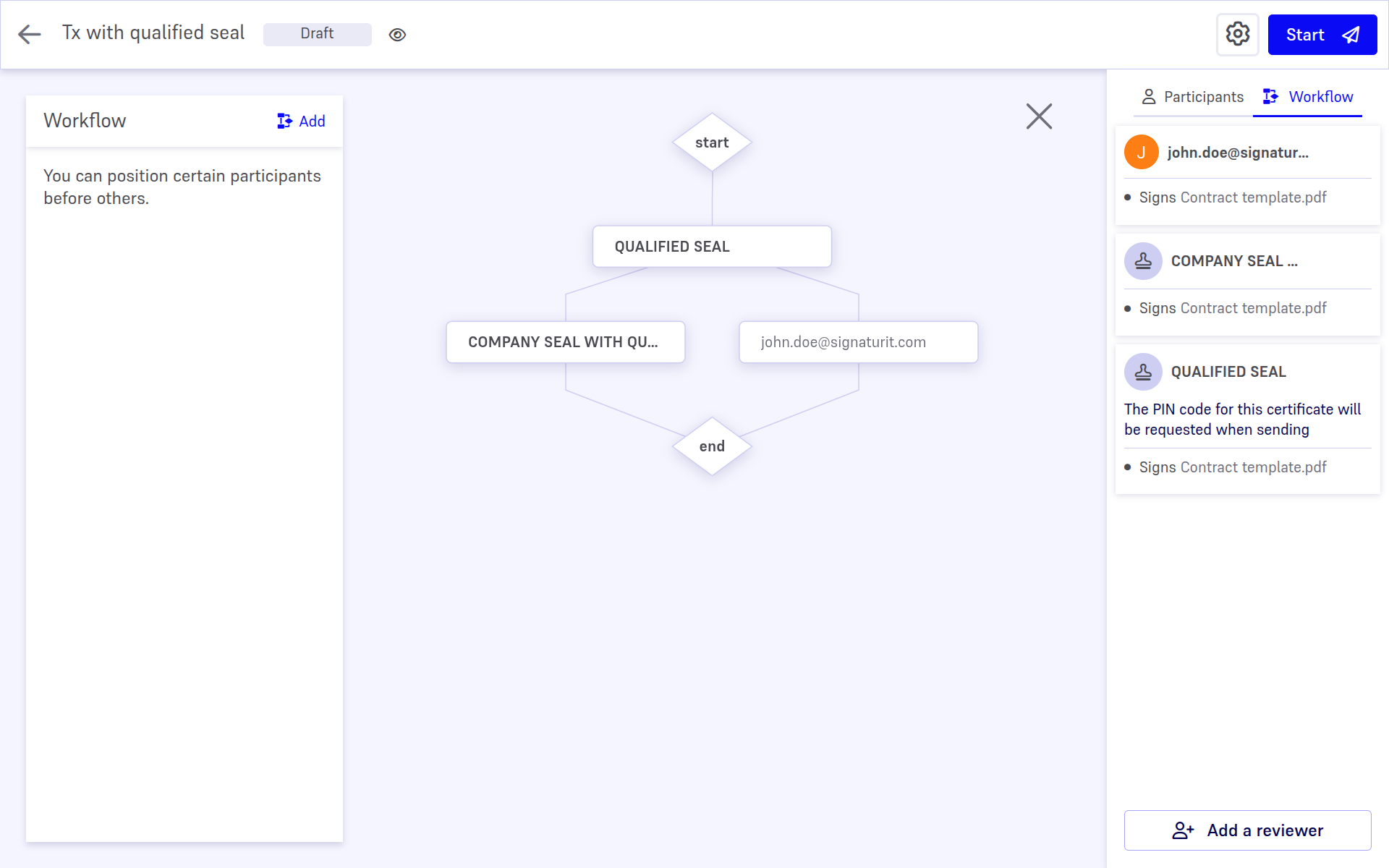
For more details about actions sequencing within a transaction, visit Order participants.
Customize seal logo
By default, when you seal a document using a certificate for legal person, the Universign logo display on the document. However, you can use a custom logo.
Note that once you have uploaded your own custom logo, you can reset the logo to use again the Universign default logo.