When you create your first workspace, it is automatically activated with a free trial. This allows you to explore basic features without any commitment.
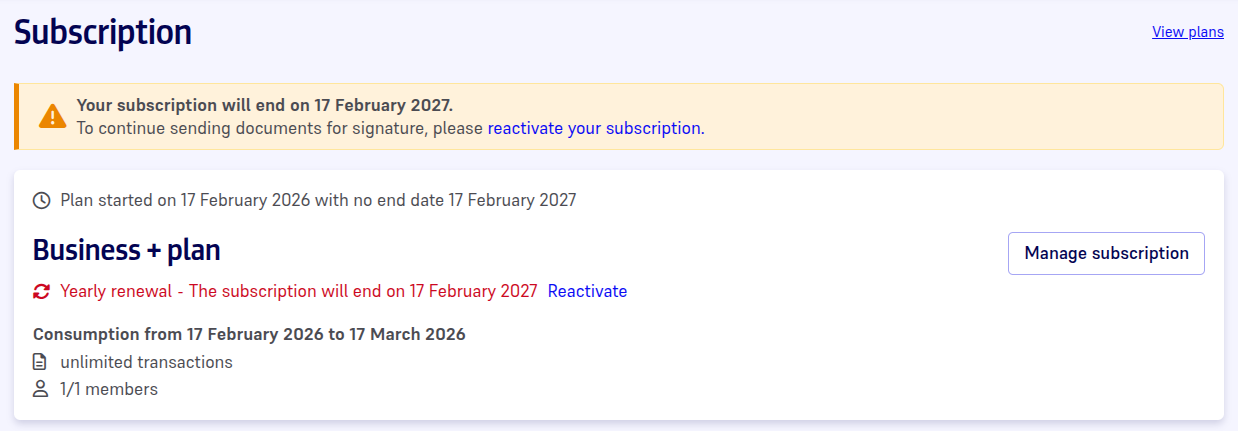
You can access your workspace subscription details from the left sidebar of your dashboard, via the Administration space.
From the Subscription and Invoices section, you can:
- display information about your subscription,
- add members if needed,
- display available features list,
- display signature units consumption,
- upgrade your susbcription.
Note that only the owner of the workspace can manage workspace susbcription.
Upgrade your subscription
If you want access to more features, you can change your subscription at any time:
- Click the Upgrade button.
- Select the plan that best fits your needs.
- Optionally purchase member licenses.
- Optionally purchase signature packages.
- Follow the steps to proceed with payment.
Note that if you want to subscribe for a custom plan, you need to contact us. To do so, select the Enterprise plan and click the contact us button.
Purchase signature packages
Simple signatures are available by default in your workspace.
A signature package gives you access to a set number of Advanced Electronic Signatures (AES) or Qualified Electronic Signatures (QES) that you can use in your transactions.
Note that signature packages are exclusively available for Business and Business+ plans.
To purchase signature packs:
- Click Purchase Signatures.
- Select the required pack based on your needs.
- Complete the payment.
Your package is immediately available and displays in the Subscription and Invoices section.
Each package has a validity period depending on the signature type. The validity period begins on the date of purchase.
Note that you can combine multiple packages. However, their signature levels are managed independently.
About Signature consumption
A signature is considered consumed when it has been successfully performed by a participant in a transaction. It immediately deducts one unit from your package.
A signature is considered pending when it has been requested in a transaction but not yet performed (the participant has not yet signed). It is deducted from your package but can be credited back if it is not used and your signature package is still active.
We count one signature per participant per document, not the signature fields placed on the document (we count the act of signing).
Example
A transaction contains two documents. Each document requires a QES signature from one signer (the number of fields doesn’t matter). In total, this transaction therefore counts as two signatures.
You can monitor your signature consumption in the dashboard under the Subscription and Invoices section.
Note that our certificates are reusable, which means that the signer’s identity is verified only once, not with every signature. For more details, visit Certificates.
Package expiry
If your package expires, pending signatures that were requested before the expiration date remain valid until the transaction is completed. These signatures therefore remain available even if your plan has expired in the meantime.
Only unused signature units (unconsumed and not used in a pending signature) are lost when the plan expires.
Example
You purchase a pack of 20 signatures valid for 3 months.
When the pack expires:
- 15 signatures have been consumed = they are no longer available.
- 3 signatures are currently requested in transactions sent before expiration = they are still valid.
- 2 signatures have never been used = they are lost.
Manage members and licenses
Purchase licenses
Once you upgrade your plan to Business or Enterprise, you may need to add new members to your workspace.
Before you can add members to your workspace, you need to purchase licenses. To do so:
1. From the ** and Invoices** section, click on Manage subscription.
2. From the subscription management platform, click on Update subscription.
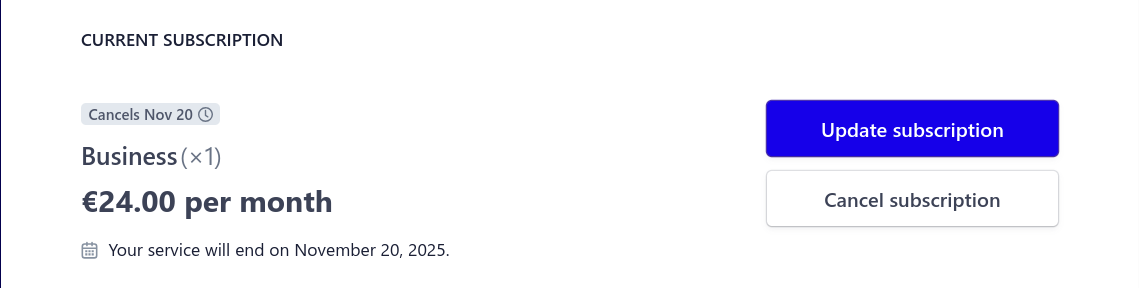
3. Add the number of licenses required and click on Continue.

4. Confirm your purchase and click on Subscribe and pay.

Your workspace has now been updated and you may add as many members as you have purchased licenses.
Add members to the workspace
You can add members to your workspace either from the Members section or from the Subscription section.
Note that if the number of licenses is lower than the number of active members in your workspace, the most recently added members to your workspace will be automatically deactivated at the next renewal date. However, you can remove members yourself before they are deactivated.
Cancel your subscription
If you want cancel your subscription:
- Click the Manage subscription button.
- From the subscription management platform, click on Cancel subscription.
- Confirm your subscription cancellation.
- Optionally select a cancellation reason.
Note that as long as the effective end date of your subscription has not been reached, you can still reactivate it.